Scenario
You’ve chosen to bring in Aformity to streamline this migration: Aformity will help define the destination schema (for Acme CRM), define the source schema (HubSpot export), provide a no-code transformation builder, launch a secure “space” for your CSM/implementation team to upload, validate and transform the data, and then import the cleaned data into Acme CRM. Also, Aformity supports “plugins” to simplify common mapping, validation and transformation steps.
Step-by-Step Tutorial
1. Kick-off & Define Schemas
a. Destination Schema (Acme CRM):
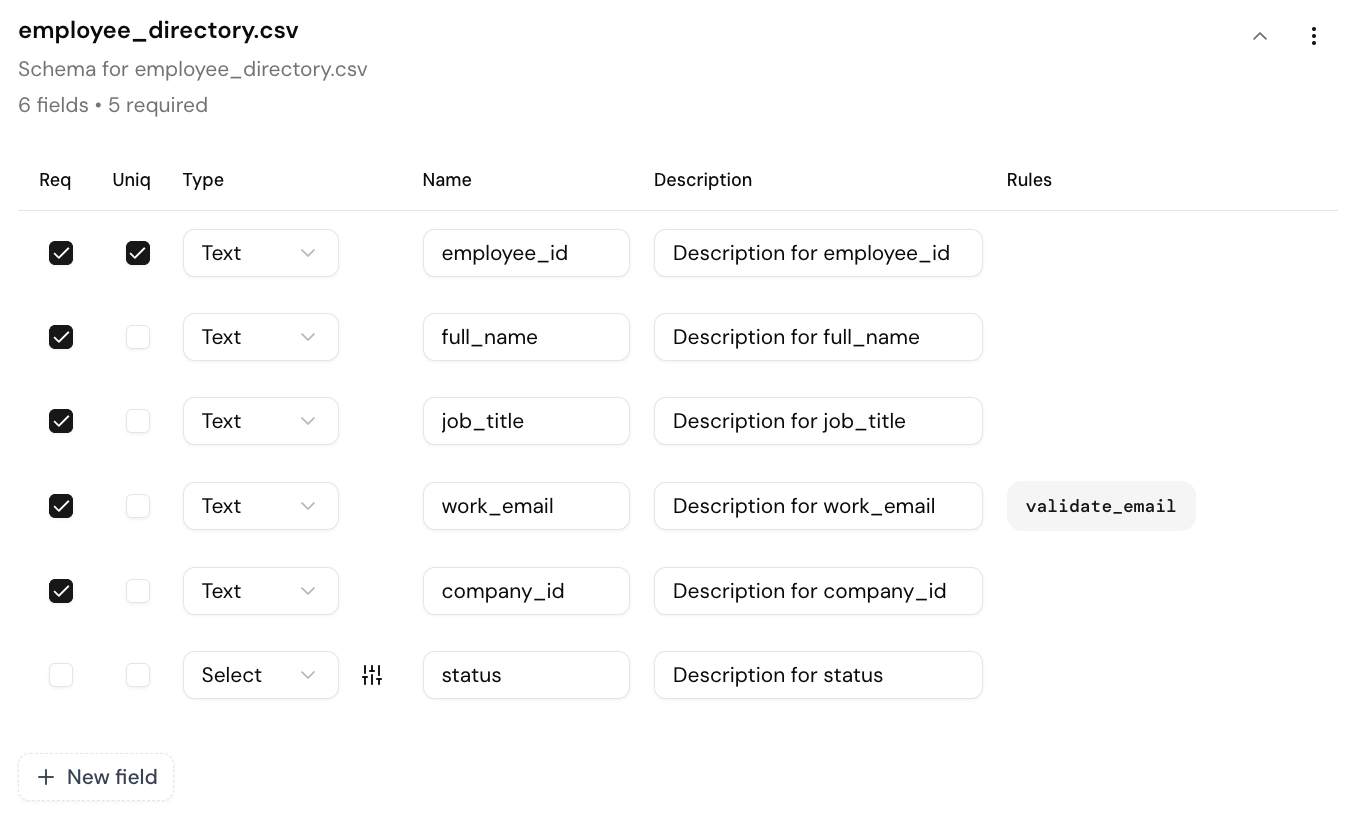
- In Aformity you define what your Acme CRM data model looks like: for example: “Contacts” object, “Companies” object, “Deals” object, “Activities” object.
- Define key fields: e.g., Contact First Name, Contact Last Name, Contact Email, Contact Status; Company Name, Company Industry, Company ACV; Deal Stage, Deal Amount, Deal Close Date; Activity Type, Activity Date, Activity Owner.
- Also define any custom objects or fields your customer will bring in (say, “Marketing List” or “Lead Source Detail”).
- Use Aformity’s Schema Builder (drag-and-drop) to model this visually, so it’s clear to your team.
b. Source Schema (HubSpot Export):
- Ask the customer to export from HubSpot: contacts, companies, deals, activities, lists.
- Bring the CSVs (or API extract) into Aformity. Aformity will auto-detect fields: e.g., “firstname”, “lastname”, “email”, “lifecyclestage”, “company name”, etc.
- Within Aformity, mark which fields map to destination objects/fields and which might be archived or excluded.
- You might notice HubSpot uses “hs_lastmodifieddate” or “hs_lead_status” – you’ll map or rename accordingly.
2. Launch Onboarding Space for Your Team
- In Aformity create a “Project Space” called: “Customer XYZ – HubSpot to Acme CRM Migration”.
- Invite your Implementation/CSM team + the customer’s data owner as collaborators (with read/write or read-only as appropriate).
- Within the space, upload the exported CSV files. Use Aformity’s pre-built “HubSpot export plugin” to parse the HubSpot format (we’ll describe plugins shortly).
- Set permissions so that only your team and customer see the files – keep everything secure and auditable.
3. Apply Plugins & No-Code Transformations
Plugins are a core part of Aformity’s value. Think of them as mini-modules you drop into your workflow to simplify common tasks. For this HubSpot→Acme CRM migration you might use:
- HubSpot Export Plugin: Recognizes HubSpot standard fields and tags, auto-generates a mapping template.
- Deduplicate Plugin: Scans Contact and Company lists for duplicates (e.g., same email, same company name) and flags them for your review.
- Custom Field Map Plugin: If the customer had custom fields in HubSpot (“Customer Tier”, “Onboarding Start Date”), this plugin helps you map them into equivalent fields in Acme CRM (“Client_Tier”, “Onboard_Date”).
- Activity History Plugin: Transforms HubSpot activity logs (calls, emails, meetings) into your Acme CRM’s Activity object structure, mapping types and dates.
Using the no-code transformation builder inside Aformity:
- Drag a “Contact CSV” into the pipeline, apply the HubSpot Export Plugin → auto-map “firstname” → “Contact_FirstName”, “lastname” → “Contact_LastName”, “email” → “Contact_Email”.
- Drag a “Deduplicate Plugin” next in the chain → run, review flagged duplicates and decide merge/discard.
- Then drag a “Custom Field Map Plugin” → map “hs_customer_tier” → “Client_Tier” and set a default if blank (“Standard”).
- Then configuration for “Contacts” is done. You repeat similarly for “Companies”, “Deals”, “Activities”.
- In each pipeline you can apply validation rules: e.g., Contact_Email must be valid, Deal_Amount must be numeric, Company_Name cannot be blank. Aformity will produce a “validation report”.
4. Validate & Review Data
- Once your transformation pipelines are defined, run the “Preview” mode in Aformity to produce an output sample list (say first 500 records) and a validation summary: how many invalid emails, how many duplicates, how many unmapped fields.
- Share this summary with the customer and your CSM: “Here are 185 duplicates flagged, 23 contacts missing email addresses, 12 deals with no amount.”
- Review and decide: fix at source? Or in the transformation? For example: you might choose to drop any contact missing email, or create “Unknown” placeholder.
- You might use Aformity’s “Feedback Loop Plugin” to allow the customer directly to tag or fix certain records via a simple UI in the Project Space.
5. Bulk Load into Acme CRM
- Once validated and cleaned, you’re ready for the final import. Aformity supports a “Destination Import Plugin” for Acme CRM (assume such).
- Configure the plugin: connect to Acme CRM’s API endpoint or bulk import function, set authentication, set object target (Contacts, Companies, Deals, Activities).
- Trigger the import. Aformity will stream the cleaned data into Acme CRM, monitor for errors, and produce a load report (how many records succeeded, how many failed, with reasons).
- Your team (CSM/Implementation) reviews the load report: X contacts imported, Y companies imported, Z deals imported, 0 critical errors. Great!
6. Go-Live & Handoff
- With data now in Acme CRM: your customer logs in, sees their historic contacts, companies, deals and activities ready to work with.
- Your CSM and Implementation team review key dashboards in Acme CRM: contact count, 90-day pipeline, activity history.
- Archive the old HubSpot data/export for reference, or keep read-only access for the customer’s records.
- Schedule training: “Here’s how your team uses Acme CRM with your migrated data.”
- You might configure Aformity to send a final “Migration Complete” certificate/report to customer and your internal ops team for documentation.
7. Post-Migration Review & Optimisation
- Run a post-mortem: how long did migration take? What issues surfaced? (e.g., many contacts missing email address)
- Use Aformity’s “Migration Metrics Plugin” to generate a dashboard: number of records processed, duplicates filtered, validation errors, time to import.
- Document in your onboarding playbook: “For future HubSpot migrations to Acme CRM using Aformity, apply these default transformation pipelines: standard Contact/Company/Deal pipelines + validation rule set v1.”
- Use this to make the next migration smoother and even faster.
Friendly Tips for Your Team
- Keep the customer engaged: even though Aformity handles much of the “heavy lifting”, the customer’s input (especially around custom fields and business logic) is critical.
- Start early: Begin the schema definition before the export is handed over, so you don’t stall while waiting for CSVs.
- Leverage the no-code builder: Even non-technical team members (CSMs, Implementation specialists) can use the visual drag-and-drop builder in Aformity—no deep engineering required.
- Treat data migration as a milestone: Set internal “migration complete” gate in your onboarding workflow so your CSM knows when they can move into the next phase (training, adoption).
- Use plugins as reusable assets: Once you build the “HubSpot Export Plugin” + “Deduplicate Plugin” + “Acme CRM Import Plugin” pipeline once, you’ve got a template you can reuse for future HubSpot-to-Acme migrations.
Why Aformity Makes a Difference
- It abstracts away the messy manual-mapping, CSV cleanup, dedupe-wars and import failures.
- By providing a collaborative space, your team + customer can operate together in one environment rather than email attachments and versioned spreadsheets.
- The visual, no-code transformation builder empowers more team members and speeds things up.
- The plugin ecosystem means you don’t reinvent the wheel each time — you drop in tested modules for common sources (HubSpot) and destinations (Acme CRM) and common transformation tasks (dedupe, custom field map, activity history).
- You get transparency: reports, dashboards, validation summaries — your CSM & Ops team know what’s happening, and the customer knows their data is safe.
- You standardise your migration process, making future migrations predictable, scalable and less risky.